
Using Links to Help People Navigate
Links allow your site visitors to easily move from page to page, and Anchors can be used to move to a specific section of a page. Anchors are very useful to break up large chunks of text and making your pages easier for your visitors to navigate.
Find out how to use Links and Anchors in this video.Link Text
Hyperlinks, or links in the text provide an easy way for people to get around pages. For example, if you want to 'funnel' people through your site in a structured way you could use links to take them to the page you want them to go to next, or make it easy for them to return to the previous page.
Link Text is also essential in other situations, such as:-
- Having pages that do not appear on the navigation bar.
- Wanting to link to a page on another website.
- Having documents like newsletters, or forms that you want your customers to download. Find out more about this on the Downloads page.
How to Add Link Text
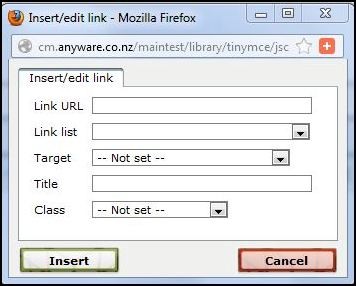 Select the text that you want to make into a link then click on the chain
  in the tool bar. A dialogue box like the one on the right will open. Read on to find out what the options in this list mean, and how to create and use anchors.
Link URL
Use this box primarily when linking to a page on another website. Copy the URL address from your browser's address bar into this box and click the Insert button.
 You don't want your visitors to click an external link and leave your site, so set up this link so they open the site in a new window. Find out how in the Target section.
Link List
Use this dropdown box to find other pages on your website to link to. Every page that was on your site when it was created should be in this list. If you cannot find the page you are looking for, contact us, or follow the instructions in the Link Text section of this page.
Target
In the Target box, the default option is to Open in this window/frame. This tells the web browser to replace the existing page with the one you are linking to. If you want to keep the current page open, change the option to Open in a new window.
Creating Anchor Text
Anchors are a good way to create links to a specific place on a page. They help break up long pages of text and make it easy for site visitors to navigate around a page without having to do a lot of scrolling. In your Content Manager Editor page you can spot an anchor because it will have a small anchor next to it. (The anchor won't appear on the live page). When you see the anchor in your editor, you know that the text immediately after it can be linked to from elsewhere on this or another page. Try out our Anchor text. Click here to go to the top of the page.
Create an Anchor and Link to It
- Find the place on the page that you want to jump to and place your cursor on the spot. Click on the Anchor Icon in the toolbar. Enter a meaningful name (all lower case and no spaces) into the Anchor Name in the dialogue box and click Insert. This spot will now appear in the editor with an anchor icon in front of it.
- Now select the text you want to make into a link and click the link icon on the toolbar.
- Enter the name of the anchor created in Step1 in the LINK ULR field with an asterix ( * ) in front of the anchor name eg: *topofpage.
- Click the Insert button.
Once you have created the Anchor anchor (Step1), you can link to it from any other text on the page by following Steps 2-4.
Remove Links
To remove a link from any text, just select the text and click the broken chain in the toolbar.
Email Links
Your website will either have a form, or an email address. When we add email addresses to a webpage, we code it in a macro to avoid spammers. Adding an email address yourself may open you up to spam email so we recommend you do not do this, and instead Contact us if your requirements have changed.
Now that you are familiar with using text you can start learning how to add images.
Last Updated: 2013-08-07


