
The Image Manager
Photos and pictures make a webpage more appealing to readers.
In this video, we will show you how to upload and insert images, and how to delete them if you no longer want them. Watch the video, or if you prefer, read the notes below (There are a few tips for improving the layout that aren't in the video.)Inserting an Image
Before you insert an image onto a webpage, that image must be uploaded into the media library that is associated with your website.
Uploading the Image
- Open the Image Manager
 by clicking on the Anyware Image Manager icon on your toolbar.
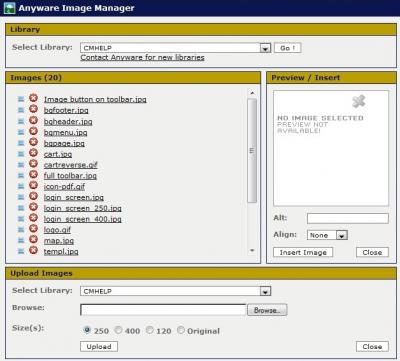 You will see a dialogue box like the one on the right.
 - Go to the section at the bottom that says Upload Images.
- In the Browse line, navigate to the folder on your computer where the file is located.
- Resize or change compression rate.
Image names must be lower case and less than 20 characters. They will be uploaded with the same name as their source
Tip:
When creating files on your computer use the underscore(_) character to separate each word. This will make a file name easier to read.
The file will be uploaded to the Content Manager with the same file name. If you change the size when uploading the Content Manager will automatically adjust the file name and size.
Notes on sizing and compressing images
- Images can be made smaller, but making them bigger will result in poor quality images
- As a size guide, images on this page are about 120pixels wide and the picture of this famous man is about 500 pixels wide (a bit wider than the recommended size for your website).
- Compression makes a file smaller or larger in size (storage size, not viewing size). There is a trade off between making a file size smaller so it will load quickly, and maintaining a resonable quality. We recommend a compression size of 10%.
- If you want to crop and resize images before you load them, there are many tools available. We recommend FastStone Image Viewer as open source software that is very easy to use. Read this guide (PDF) for a basic guide to using FastStone. GIMP is another open source software product with more features.
- Upload image
Adding the Image to a Page
Once you have your images in the media library you can add them to your webpage.
- Insert the cursor at the start of the line where you want the image to be.
- Open the Image Manager and find the file in the list under the Heading Images.
- Click on the image you want. A preview will appear in the Preview/Insert box on the right.
- Add a meaningful description.
Tip: These descriptions are helpul for people with visual impairments who may use screen-reader software to interpret webpages. - Choose an alignment for the image - the left, centre or right of the page.
- Click Insert Image.
- Save or apply the change.
Deleting Unwanted Images from the Media Library
If you have added images to the library that you no longer want, you can delete them. Only delete any images that you have added. Images in your media library list may be associated with the visual aspect of your website and must not be deleted.
- Click on the Image Manager in the Toolbar.
- Find the name of the image in the list and click the red cross to the left of the file name.
Additional Tips to Get Good Images
- The bigger the image size (in pixels), the longer it takes to load, and this makes for a less satisfying experience for visitors.
- Use your desktop application's Properties option to check file sizes
- If you need to crop and resize do this in an image editing tool like Faststone and crop the image first.
- Displaying large images are distracting whilst too small images don't get seen.
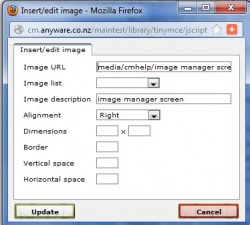
- Create space around your images. In the Image Manager right click on your image and select the Edit/Insert Image option.
Use the Horizontal and Vertical Spaces boxes to add space. You will need to play with the sizing, but as a guide, set horizontal spacing (for text that sits to the right or left of your image) to 15, and 10 or 15 for text that sits above or below your image. - Images sometimes look better with a border. You can either use your image editing software to create a border around an image before you upload it, or create one using the Edit/Insert option in the Content Manager.
If you are using downloadable files, find out how to set those up here. Otherwise you are just about ready to check and publish.
Last Updated: 2013-08-07


